GA4 Page Links: open the right page from Google Analytics
Contents
Product guide · Chrome extension
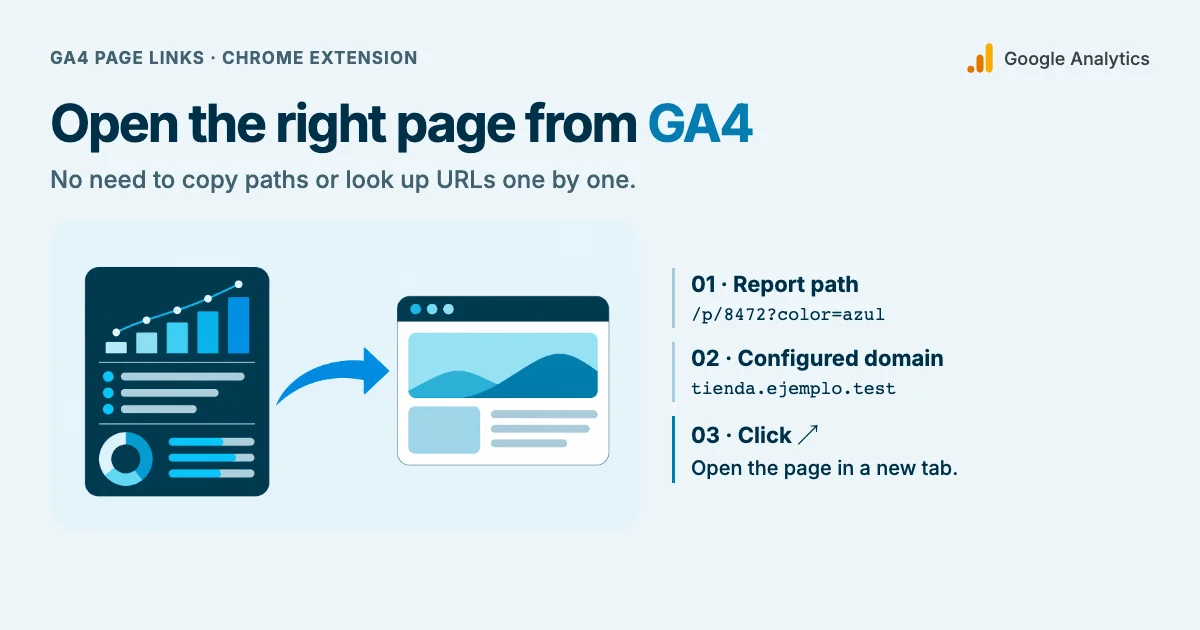
The row /p/8472?color=azul gives a clue about the color, but it doesn't tell you what the product is or which store sells it. GA4 Page Links is a free CookingMetrics extension developed by Martín Garay. It adds an ↗ arrow next to recognized paths in Google Analytics reports. Click the arrow to open the page in a new tab and keep your place in the report.
The choice that matters is where the domain comes from. A property that measures one store can use a fixed domain. If the property measures several sites, the same path may lead to different pages.
At a glance
- The arrow combines a domain with the path in the row. It keeps any query parameters shown there; it cannot infer a missing color or size.
- If one property measures several sites, add Hostname to the table and enable the per-row option. Without that column, the extension uses the saved domain.
- For a first test, use a product you recognize. Check the domain, path and variant. Version 0.2.0 was tested with simulated reports; it has yet to be validated in a signed-in Analytics report.
Which page does the arrow open?
Pages and screens shows pages visited at any point in a session. To identify the first page in a session, use the Landing page report. In either case, choose a dimension that shows a web path: the part of the address after the domain. To distinguish product variants, choose a dimension that also shows the query string, the part that starts with ?.
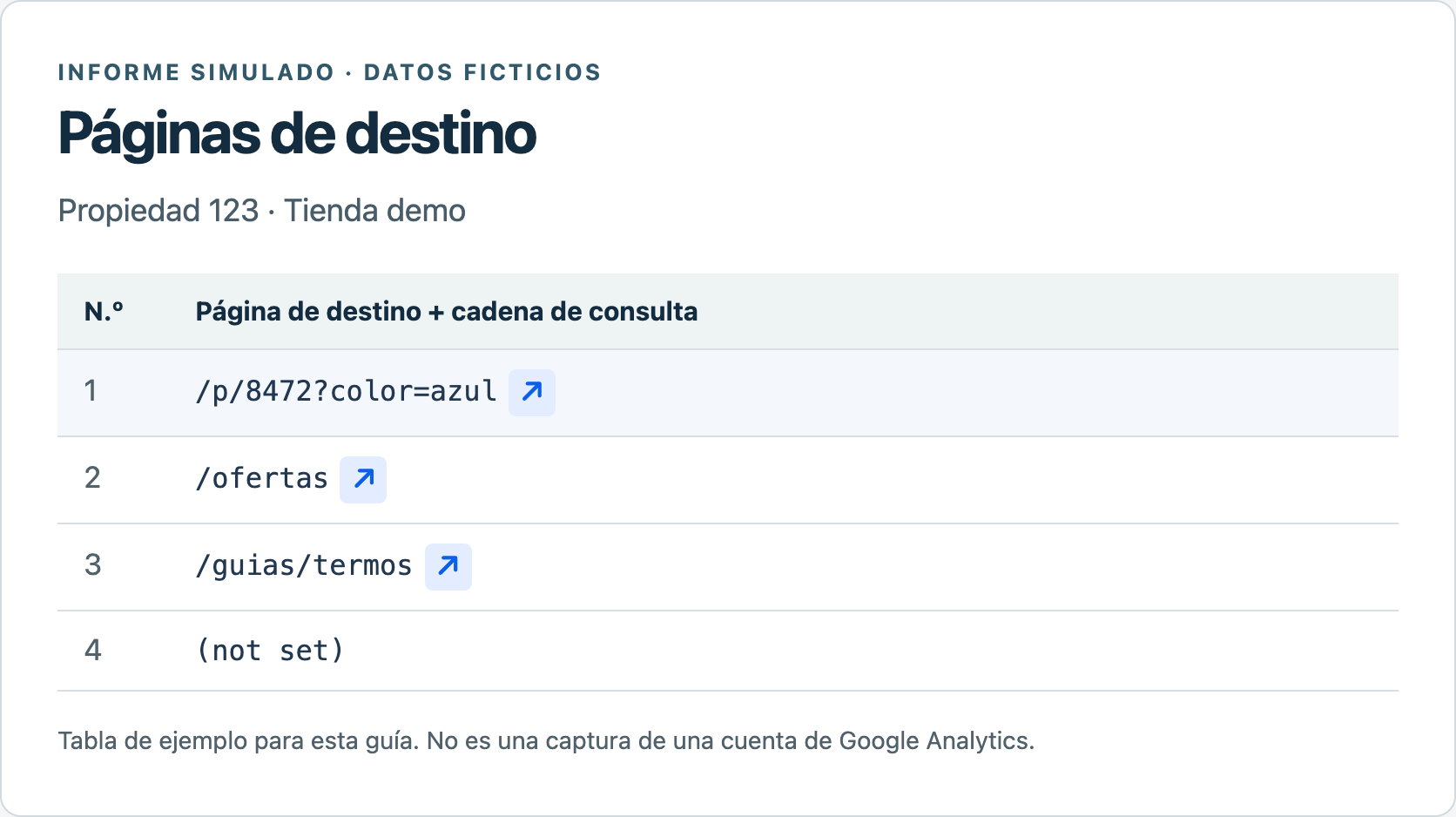
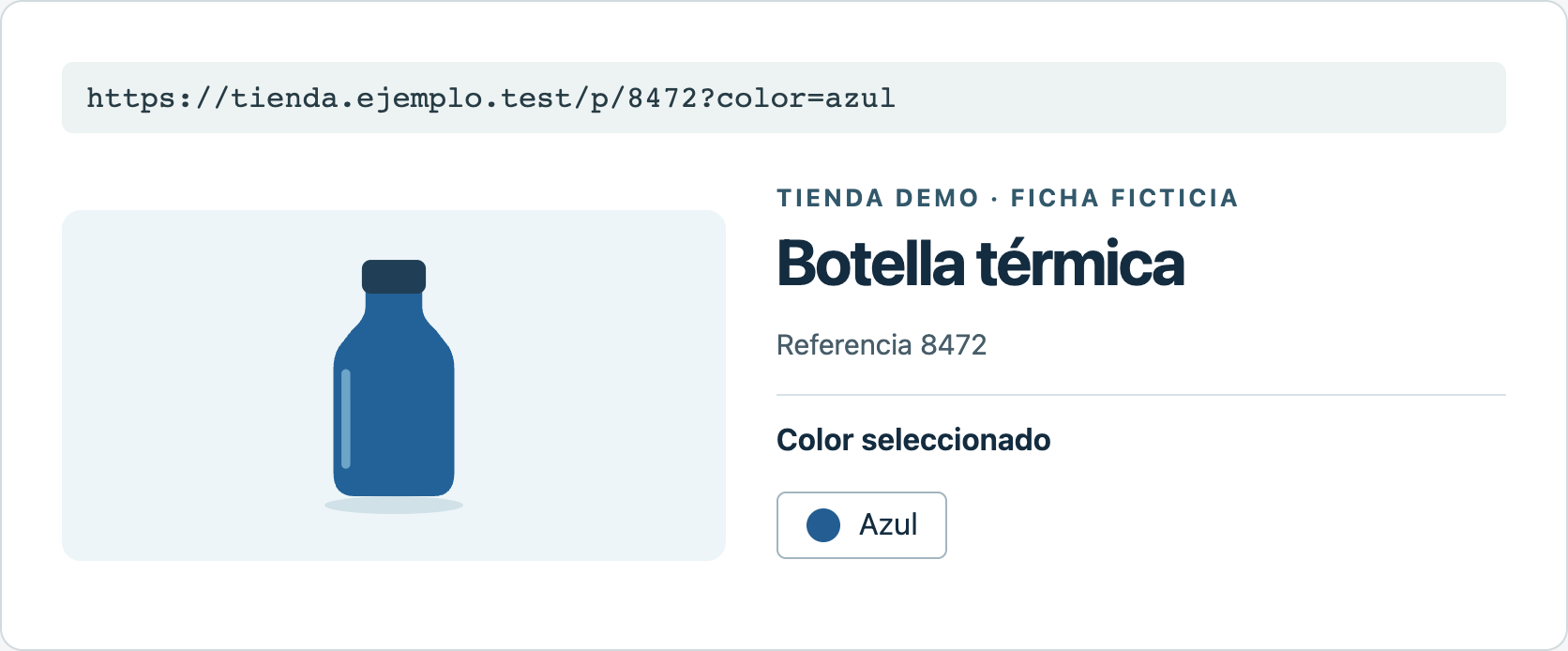
In the first row, the extension combined /p/8472?color=azul with the domain saved for the test property. It opened https://tienda.ejemplo.test/p/8472?color=azul. The code alone didn't identify the product; the page showed an insulated bottle with the blue variant selected.
Exclusive content
For signed-in readers
A lab for paths and variants
Review six cases to catch incorrect domains, dropped parameters, incomplete values, and redirects.
Sign in to access this section →We work to offer the best possible content, which is why some of these explanations are not public.
Your account does not have access to this section. Request a demo
Install the extension and test the first row
- In desktop Chrome (version 114 or later), download GA4 Page Links 0.2.0 from GitHub (ZIP). Extract the files to a folder you can keep.
- Enter
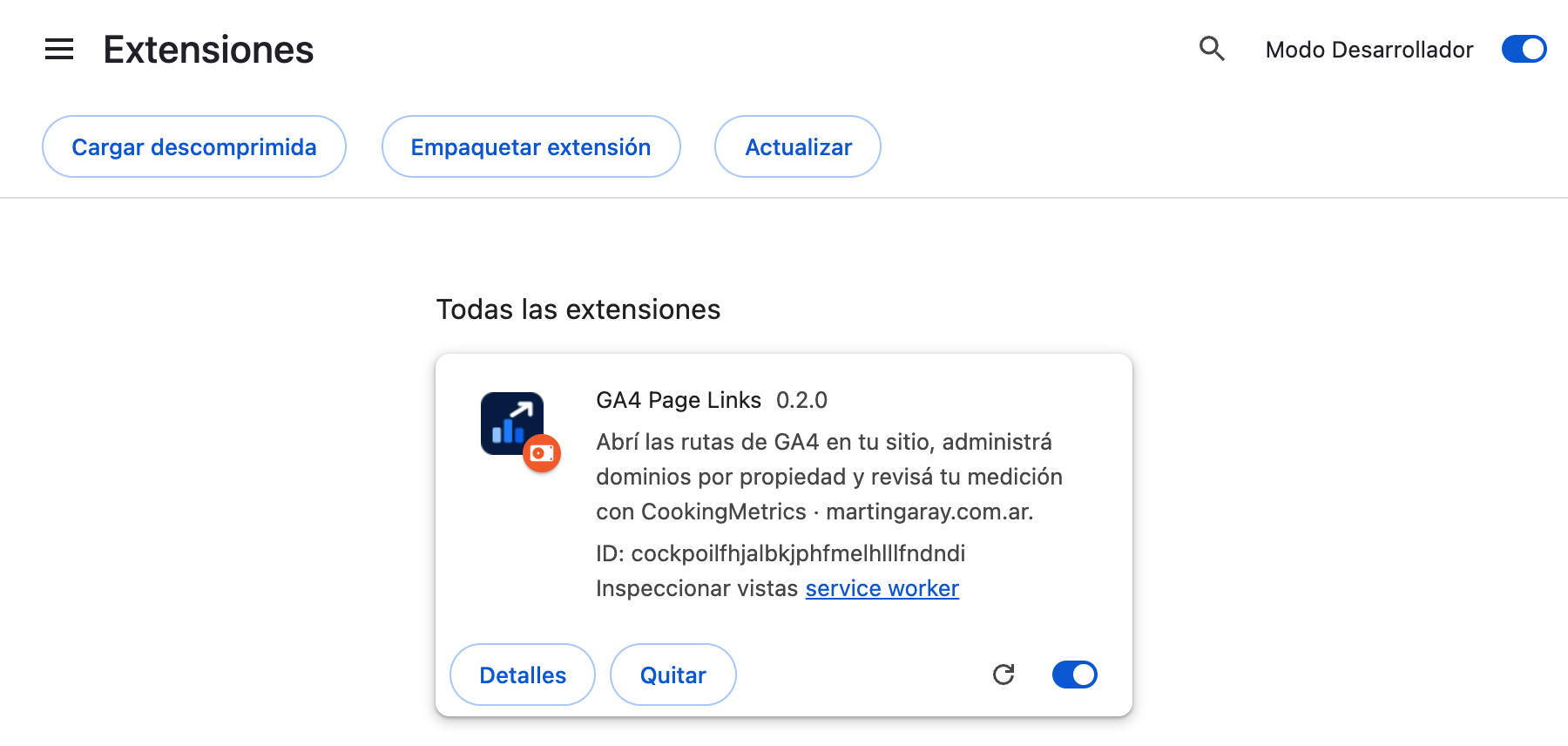
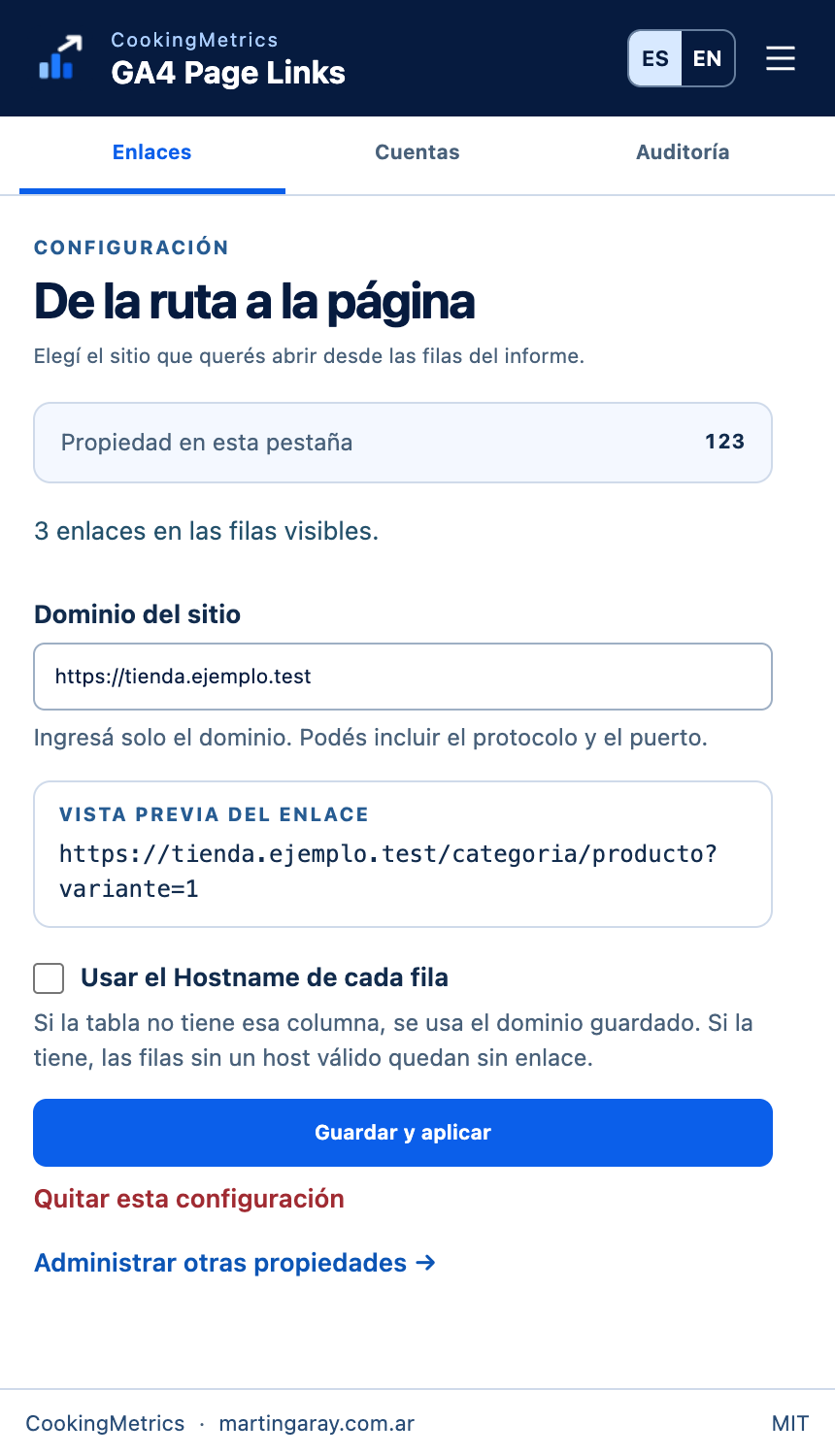
chrome://extensionsin the address bar. Turn on Developer mode, choose Load unpacked and select the folder containingmanifest.json. See the installation screenshot or Chrome's instructions for loading a local extension. - Reload the report tab if it was already open. Open GA4 Page Links from Chrome's extensions menu and select Links. Check the number under Property in this tab before saving the domain.
- Enter the site's domain only, such as
https://tienda.ejemplo.test, without the product path. Review the preview, choose Save and apply, then click the arrow next to a familiar row. In the new tab, check the domain, path and, where relevant, the selected variant.
Multiple properties or multiple domains?
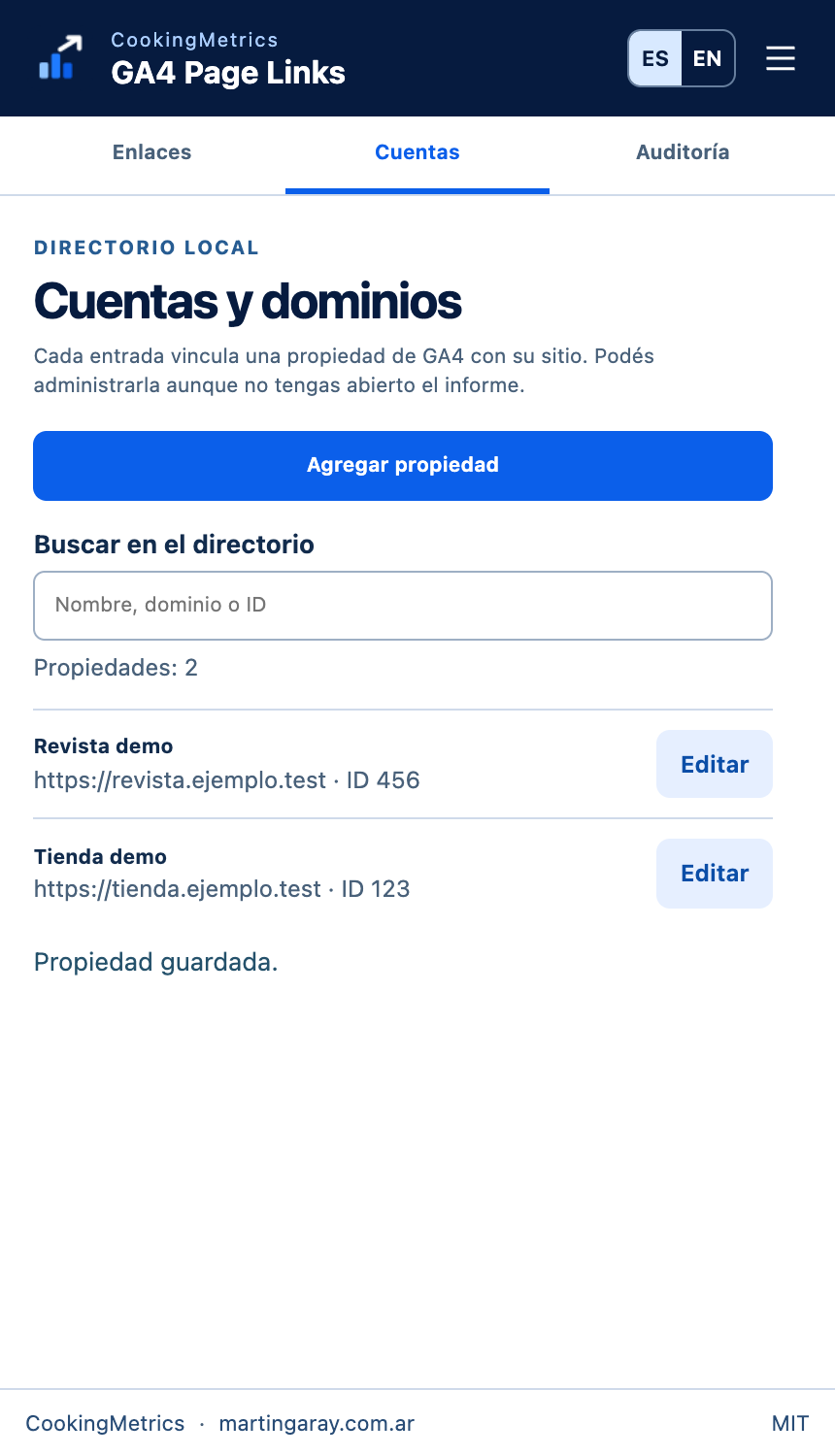
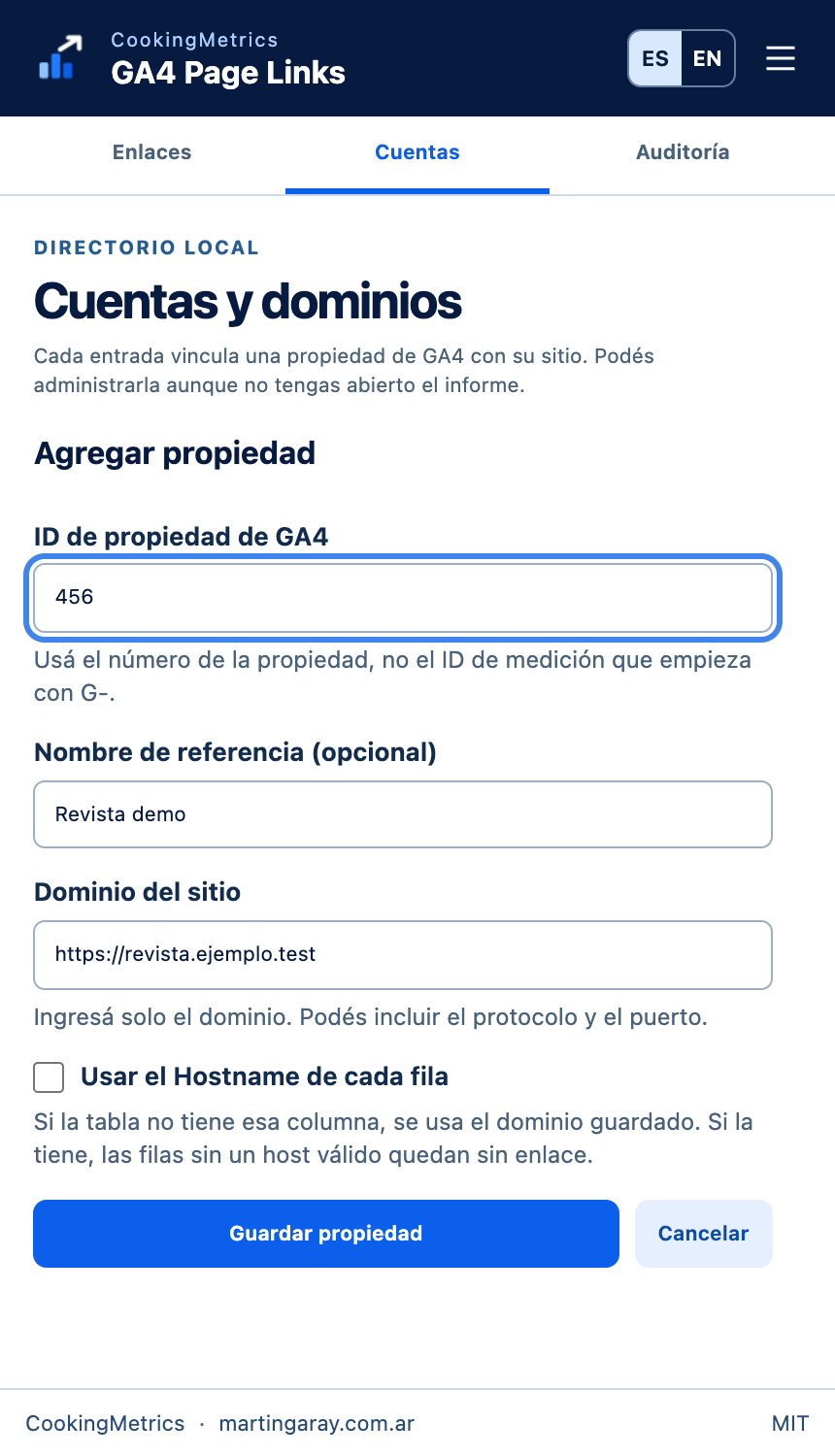
Two clients, two properties. In Accounts, each entry uses a numeric property ID, not the measurement ID that starts with G-. In the sample directory, the store is property 123 and the magazine is property 456. To prepare another entry without opening its report, choose Add property. An optional name makes it easier to find the entry later. This changes only the local directory.
One property, two sites. Suppose the store and the magazine share a property and both have an /ofertas page. A fixed domain would send both rows to the same address. Add Hostname as a secondary dimension in the same table and enable Use the Hostname of each row. A magazine row with the path /guias/termos can then open on revista.ejemplo.test even when the saved domain is the store's.
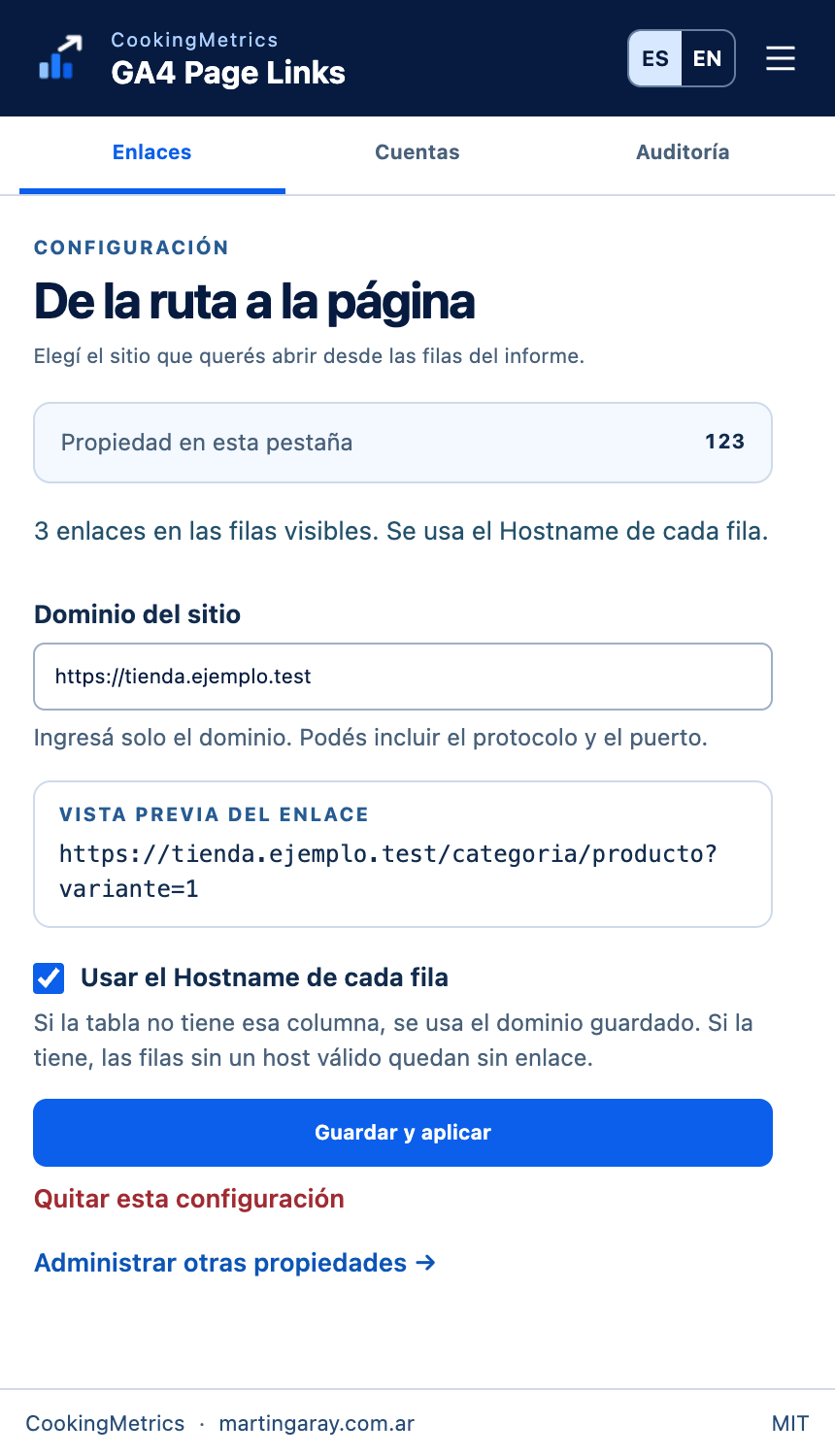
Two cases are easy to confuse. If the column is absent, the extension uses the saved domain. If the column exists but a row's hostname is empty or invalid, that row gets no arrow. For a property spanning several sites, a page that loads is only half the check: the domain must match that row. The version 0.2.0 user guide documents both cases.
Exclusive content
For signed-in readers
A matrix of properties and domains
Organize a two-site example and compare fixed domain with row-level Hostname before opening links.
Sign in to access this section →We work to offer the best possible content, which is why some of these explanations are not public.
Your account does not have access to this section. Request a demo
What the test established
The version 0.2.0 validation used Chrome on macOS, with simulated domains and reports. In the example shown here, three paths received arrows and (not set) did not. The bottle opened in a new tab with ?color=azul intact. Signed-in Analytics reports, Windows and Linux remain unverified.
For a team trial, start with a row whose destination you know. If the catalog distinguishes colors but the row shows only /p/8472, the extension cannot recover the missing color from the ID. If the question is how the variants are grouped in a product catalog, the Merchant Center attributes guide covers that separate issue.
Exclusive content
For signed-in readers
A record for testing a real report
Complete a validation guide with version, expected destination, and result, keeping untested cases visible.
Sign in to access this section →We work to offer the best possible content, which is why some of these explanations are not public.
Your account does not have access to this section. Request a demo
Frequently asked questions
Why is there no arrow next to a row?
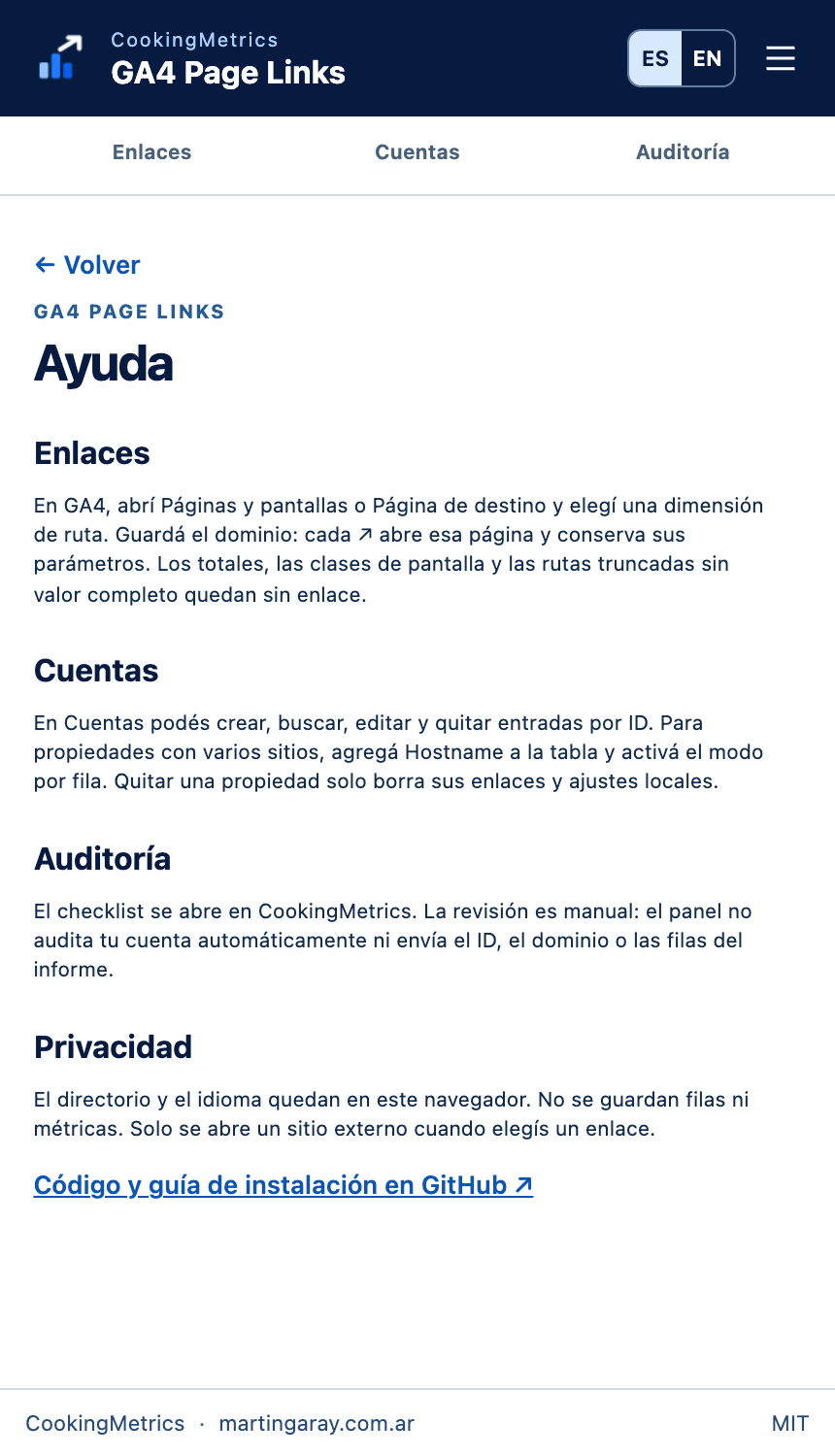
Check the Help panel and the dimension selected for the table. Version 0.2.0 recognizes English and Spanish dimension names and needs a complete path starting with /. A page title, screen class, total, (not set) or a truncated path with no full value does not supply a usable address. If the dimension is supported, check that the open property has a saved domain and reload the report.
What if the link opens a different page or returns a 404?
Compare the domain and the path in the row with the address the extension tried to open. If they match, check the current destination: the site may redirect to another product or may have removed the page. The extension does not test availability or explain a change in sales. To find out whether a crawler can reach the product page, use a separate bot access test.
What does the extension store, and what does Audit do?
The property directory and language setting stay in the browser. The extension does not store report rows or metrics. The Audit tab opens the CookingMetrics self-check when you select it. This is a manual review; the panel does not send the property ID, configured domain or row data to the checklist. To report an unsupported dimension on GitHub, include its name, the report language and a fictitious path.